Paint for Android
- 4.1
- Rating
- 1.00M
- Installs
- Free
- Price
 Analysis by App-foxy
When I want a quick digital sketch rather than a full creative workstation, Paint is the kind of Android app I reach for first. It is a straightforward drawing and painting tool from Prometheus Interactive LLC, aimed at putting a blank canvas in front of me without making the process feel like a course in professional illustration. That simplicity is its main appeal, but it also defines its limits.
After spending time with it, I see Paint as a practical choice for casual sketches, handwritten notes, color experiments, and small creative breaks. It belongs to the Art & Design category, is free to install, and is suitable for Everyone. The app has been available since March 11, 2016, so it is not a brand-new experiment trying to find its identity. It feels like an established utility that focuses on the basic pleasure of putting marks on a screen.
The current version is 19.1.1, and the minimum requirement is Android 5.0. That broad compatibility matters if you are using an older phone or tablet. Paint has passed one million installs and holds a 4.1 average from roughly seventeen thousand ratings, which suggests a sizeable audience with generally favorable experiences, while still leaving room for the occasional frustration that comes with a simple, widely used tool.
You May Also Like

 Blood Strike: 2.5 Anniversary
Blood Strike’s Loadouts Turn Every Drop Into a Tactical Gamble
A close look at Blood Strike’s custom loadouts: how fast access to signature weapons reshapes its battle royale rhythm, rewards preparation, and narrows the gap between fights.

 Pandora - Music & Podcasts
Pandora’s Music Is Easy to Start, but Harder to Recover
Pandora’s strength is its low-effort path from a seed to a station. Its weak spot is how much confidence it asks you to place in connection, setup, and quiet recovery.

 8 Ball Pool
 Is Built on Rivalries, Rematches, and Routine
A close look at the rivalries, rematches, shared routines, and unanswered safety questions that turn a quick pool match into a persistent mobile community.

 Samsung Music
’s Quiet Strength Is Playing What You Already Own
Its reach comes less from spectacle than from dependable access to a personal library. That simplicity is both the app’s strongest retention engine and its ceiling.

 AccuWeather: Weather Radar
AccuWeather Review: A Quick, Clear Forecast for Everyday Decisions
For everyday plans, the best forecast is the one you can understand quickly. AccuWeather makes rain timing, radar, and local conditions easy to act on, with a few trade-offs.

 Hill Climb Racing
Why Hill Climb Racing Still Turns Crashes Into One More Run
A tiny car, a bumpy hill and one more upgrade: Hill Climb Racing keeps resurfacing because its simple chaos makes every near-miss feel personal.
More From Our News Desk



How Paint feels in everyday creative work
The first thing I notice is that Paint does not try to turn every drawing session into a complicated project. I can open it with a small idea in mind, make a few strokes, and stop without having to configure a large workspace. That makes it useful for the moments when a notebook is not nearby or when I want to test a visual thought before forgetting it.
A realistic example is planning a room arrangement. I might sketch a rough floor plan, mark where furniture could go, and use different colors to separate the sofa, table, and windows. The result is not intended to replace a proper design program, but it is fast enough to communicate an idea to someone else. I can also use the same approach for a birthday card draft, a simple diagram, or a rough logo concept.
For children and beginners, the low barrier is valuable. A blank digital canvas feels less intimidating than a sophisticated illustration suite filled with panels and technical terminology. Someone learning how a brush behaves, how colors interact, or how hand movement translates to a screen can begin experimenting immediately. The Everyone age rating also makes it a reasonable app to consider for general household use.
That ease should not be confused with professional depth. If I need a carefully managed illustration with advanced layer control, precision vector paths, detailed typography, or a serious animation workflow, I would look elsewhere. Paint works best when the goal is expressive and immediate rather than highly engineered.
A useful tool for quick sketches and visual notes
One of the less obvious strengths of a basic painting app is speed. I can use it as a visual scratchpad instead of writing a long explanation. A few colored shapes can explain an idea more clearly than several sentences, especially when I am thinking through a layout, a craft project, or a presentation slide.
I also find this kind of app helpful for practicing restraint. Because it does not encourage me to build an elaborate production around every mark, I can concentrate on composition and color. A useful exercise is to create a small scene using only a few tones, then remove unnecessary details. That makes Paint suitable for learning visual balance even if it is not a dedicated art-learning platform.
Another practical workflow is to sketch first and refine later in a more advanced editor. I can use Paint to work out the broad shape of an idea, then recreate or develop it elsewhere. This saves time because I am not spending the early planning stage inside software designed for final polish. The trade-off is that moving between apps can become inconvenient if I need to preserve editable structure rather than a simple finished image.
Where the simple approach starts to show its limits
Paint is not the app I would choose for a long illustration session on a small phone. Finger drawing can feel imprecise, and a compact screen leaves less room for comfortable hand movement. A tablet or a device with a stylus should make the experience more natural, but the quality of the result will still depend on the tools and controls available in the app.
I would also think carefully before using it for work that depends on exact repetition. Creating a clean diagram, aligning multiple objects, or making consistent lettering is easier in an app built around shapes, guides, and editable layers. Paint is more forgiving when the drawing can remain rough. It becomes less comfortable when every edge needs to line up.
The same distinction applies to editing. A casual user may be happy with a direct, mark-on-canvas workflow. A designer who expects a non-destructive process may find it restrictive if the app does not fit the way they normally separate, revise, and organize visual elements. I would not buy a stylus or plan a professional project around Paint without first testing the exact workflow on my own device.
Comparing it with the usual alternatives
Compared with a full-featured digital art suite, Paint is less demanding to learn and less likely to distract me with controls I do not need. That makes it better for a quick doodle or a first attempt. The larger alternative may be better when I need layers, detailed brush customization, precision selection, or a reliable path from rough sketch to finished artwork.
Compared with a note-taking app, Paint is more visual and less focused on text. If my main need is a shopping list, meeting notes, or searchable writing, a notes app is the sensible choice. If I want to draw arrows, color-code an idea, or make a handwritten visual explanation, Paint feels more direct.
Compared with a physical notebook, it avoids paper and gives me a more flexible color-based canvas, but it depends on a charged device and the comfort of a touchscreen. A notebook remains better for people who want a tactile surface, instant access, and no concern about accidental taps or interface controls.
Compared with a photo editor, Paint is the better starting point for creating something from an empty canvas. A photo editor is more appropriate when the central task is correcting, cropping, or enhancing an existing picture. Choosing between them depends less on artistic ambition than on whether I am making an image or changing one.
Trust, controls, and moments that deserve attention
Paint’s simple purpose makes it easier for me to understand why I would use it: I open it to draw and paint. That clarity is useful when deciding whether an app belongs on my phone. The developer is Prometheus Interactive LLC, and the app is free to install, with in-app purchases ranging from $0.99 to $99.99 per item. I would check the purchase screen carefully before confirming anything, especially if a child might use the device.
The free entry point lowers the risk of trying it, but “free” does not mean I should ignore visible choices. I pay attention to what appears when I first open an app, whether a purchase is optional or necessary for the task I want, and whether the interface makes it clear when I am leaving the basic drawing experience. Those habits are more useful than assuming every free creative tool works the same way.
For privacy-conscious users, I would review the current permission prompts and the app’s privacy information directly on the device or in the store before installing. I do not treat a drawing app as automatically harmless simply because its purpose is creative. I look for the permissions it requests, read any explanations shown at installation, and avoid granting access that does not make sense for my intended use.
The most data-sensitive moments are usually practical ones: choosing where a drawing is saved, sharing an image, opening a file from another location, or allowing access to photos and media. I would pause at each of those points rather than tapping through automatically. If I only want to create a new sketch, I prefer granting the narrowest access needed for that action.
I also keep control of my own copies. Before clearing the app, changing phones, or experimenting with a major drawing, I save important work in a location I recognize and can access independently. That is a useful safeguard with any lightweight art tool, because a simple interface does not guarantee that every drawing will be easy to recover after a device change or accidental deletion.
Account control matters too. I would not create an account merely because an app displays an optional sign-in prompt. If Paint offers a choice between using the drawing canvas directly and connecting an account, I would select the simpler route unless I had a clear reason to use account-based features. I also check whether purchase confirmation is protected by my device’s normal authentication settings.
The best trust habit here is to keep every permission, purchase, and sharing decision intentional. That is not a criticism aimed specifically at Paint; it is the sensible way to use any free app that handles personal creations. A sketch can reveal private plans, children’s drawings, handwritten information, or unfinished work, so I treat the image itself as something worth protecting.
Who will get the most from it
I would recommend Paint to someone who wants a basic Android canvas without a steep learning curve. It suits casual artists, children with supervision around purchases and sharing, students making visual notes, and anyone who occasionally needs to draw an idea instead of describing it. It is also a sensible first step for a person who has never used a digital painting app and wants to discover whether touchscreen drawing feels enjoyable.
It can be especially useful on an older Android device because the minimum operating-system requirement is not demanding. That does not guarantee identical performance on every phone, but it makes the app relevant to people who cannot or do not want to move to the newest hardware. I would still test brush responsiveness and screen comfort on the device I plan to use most.
I would skip it if my priority is professional illustration, advanced photo manipulation, precise technical diagrams, or a carefully organized multi-stage art pipeline. I would also choose a different tool if I mainly need handwriting recognition, searchable notes, cloud collaboration, or detailed document annotation. Paint can support those activities informally, but it is not the reason I would install it.
Practical advice before committing to a larger project
My advice is to begin with a small test drawing rather than an important commission or school project. Try a few lines, broad color areas, and a simple shape. Then check whether the controls feel comfortable with your finger and whether the saved result meets your needs. This quick test tells me more than a store description because touchscreen response and workflow preferences are personal.
For cleaner results, I would work from large shapes toward small details. I start with the background or main blocks of color, then add the recognizable features, and leave tiny marks until the end. This approach reduces the frustration of trying to perfect a detail before the overall composition works. It is also a good way to see whether Paint’s basic toolset matches the kind of images I want to make.
When drawing on a phone, I keep the design deliberately simple. I use strong silhouettes, clear color differences, and fewer fine lines. A sketch that looks readable on a small screen is more useful than one packed with details that become difficult to control. On a tablet, I would take advantage of the extra space for broader gestures, but I would still save versions of anything important as I go.
I also separate experimentation from finished work. A disposable practice canvas is the right place to test colors and hand movement. Once I know what I want, I start a fresh drawing for the final version. That small habit protects the original idea from becoming cluttered and makes it easier to judge the finished result honestly.
My cautious verdict
Paint succeeds because it understands the value of a quick, uncomplicated canvas. I like it for rough ideas, playful drawings, simple visual explanations, and beginner practice. Its free installation and broad Android compatibility make it easy to try, while its 4.1 average and large user base indicate that it has earned a generally positive reception without making it universally perfect.
The important question is not whether it can replace every other art app. It cannot, and I would not want it to pretend otherwise. The better question is whether I need a direct way to make a drawing now. If the answer is yes, its simplicity becomes a strength rather than a missing feature.
I would install Paint when I want a low-pressure creative tool, then judge it on my own device with a small project. I would keep purchase confirmation protected, review permissions before granting access, save meaningful work outside the app when possible, and move to a more specialized alternative if precision or editability becomes central. For casual Android drawing, that is a fair balance: approachable enough for beginners, useful for quick visual work, and honest about the point where a more advanced tool is the better choice.
Overall, Paint is worth trying if your expectations are grounded in sketching and basic painting rather than professional production. I would recommend it to a friend who wants to draw without a complicated setup, while making clear that its greatest advantage is also its boundary: it gets me onto the canvas quickly, but it is not designed to carry every kind of creative project to a polished final stage.
FAQs for Paint for Android
01What is Paint for Android, and what can I use it for?
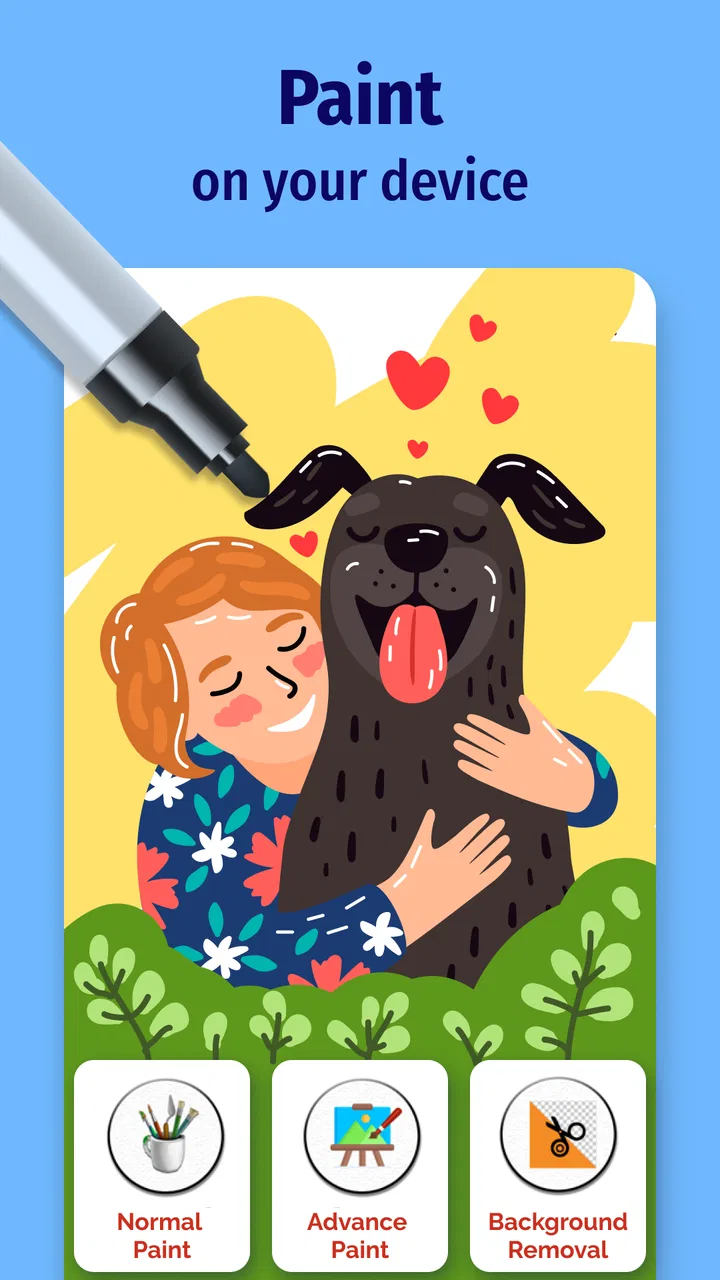
Paint for Android is a mobile drawing and image-editing app designed for creating quick sketches, illustrations, annotations, and simple graphic projects directly on a phone or tablet. During testing, it felt most useful for casual drawing, coloring, handwriting, and editing existing images rather than professional digital painting. The available tools may include brushes, colors, shapes, text, erasers, and basic canvas controls, depending on the version installed.
02Is Paint for Android suitable for beginners?
Yes, Paint for Android is generally approachable for beginners because its interface focuses on familiar tools such as a brush, pencil, eraser, color palette, and shape options. New users can start drawing without studying complicated menus or tutorials. However, the exact layout and number of tools can vary between versions, so advanced artists may find it less comprehensive than specialized apps offering layers, custom brushes, pressure control, and professional color-management features.
03Can I save and share drawings made in Paint for Android?
Most versions of Paint for Android allow users to save completed work to the device and share images through common Android applications such as messaging services, email, cloud storage, or social networks. Before downloading, check which file formats are supported, since some editions may primarily export standard image files such as PNG or JPEG. If your project is important, save copies regularly because basic apps may not provide automatic backup or recovery options.
04Does Paint for Android work offline, and does it require special permissions?
Basic drawing functions in Paint for Android commonly work without a continuous internet connection, which makes the app convenient for sketching while traveling or when mobile data is unavailable. Internet access may still be used for advertising, updates, or optional sharing features. When installing, review the permissions requested by the app, particularly access to photos, media, or files. Only grant permissions that match the features you plan to use.
05Is Paint for Android free to download, and are there advertisements or in-app purchases?
Paint for Android may be available as a free download, but the business model can differ depending on the developer and the version listed in the store. Free editions may include advertisements, optional purchases, or limits on certain tools and export functions. Check the current Google Play listing before installing to confirm pricing, supported devices, recent reviews, and whether the app contains ads or offers paid upgrades for an uninterrupted drawing experience.
Pros
- Simple tools make it easy for beginners to start drawing quickly.
- Supports freehand drawing for sketches
- notes
- and creative projects.
- Color selection offers enough variety for casual artwork.
- Lightweight design runs smoothly on most Android devices.
- Useful for quick edits without needing a complicated art suite.
Cons
- Advanced brushes and professional editing features may be missing.
- Small screens can make precise drawing difficult without a stylus.
- Ads may interrupt the experience in the free version.
- Large or detailed drawings may feel limited by the basic canvas tools.
- Export and file-format options may be less extensive than in full editors.

Paint for Android
Gallery